Remove User Access
For compliance reasons, former users are not removed from the Transportant system. However, it is easy to deactivate a user and to mark that user as no longer having access. Here's how.
How to remove access
1. Under the “Administrative Tools” section on the dashboard, click the “Users” tile.
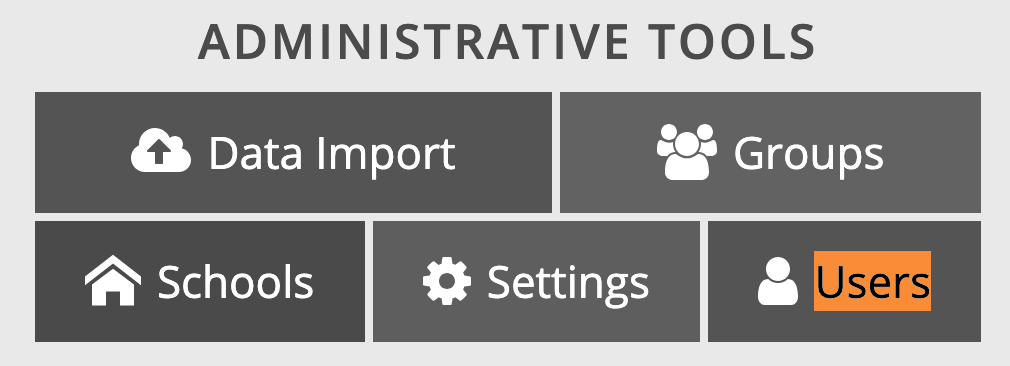
2. Click the checkbox next to the name of the user.
3. Near the top right corner of the page, find the User Actions button. Click on it, which opens a context menu.
4. In the context menu, select Revoke Certificate. The message "device access cleared' will briefly appear to confirm that the user's access to the dashboard has been revoked.

5. Click the “Role” field in the panel on the right hand side of the screen and select “No Access”.

6. Click on the “Filter By” field at the top of the page to confirm your changes. A “Your changes have been saved”. message will appear on your screen. This confirms the user's dashboard access has been removed.
Although this user will continue to appear in your list of users, he or she is now clearly marked as having the role "no access".
We encourage school systems to add this procedure to their employee offboarding checklist.
Troubleshooting
If you encounter a problem while attempting to remove a user's access, contact the Transportant support team at support@transportant.com. Mention the name and email of the user that you wish to remove access for, how far you got in these instructions, and what happened to indicate failure. In particular, the error message "unable to save" indicates a difficulty that Transportant staff can fix, so do let us know.
Related Articles
Add a New User
Under the “Administrative Tools” section on the dashboard, click the “Users” tile. The Users page will open. Near the top right corner of the page, find the User Actions button. Click on it, which opens a context menu. In the context menu, select Add ...Remove All Bus Passes From the System
Overview There may be times when your district needs to remove all student bus passes (such as fobs, RFID cards, or barcodes) from the Transportant system — for example, at the end of the school year, or when resetting your database before summer ...Bus Installation Guide
This document is created to help guide appointed technicians in installing the Transportant system. Equipment The following is the list of tools, parts, and equipment needed for an initial installation. Transportant-Supplied Equipment (1) Attendant ...Bus Lot Wireless Network Installation Guidelines
The Transportant system requires a wireless network in the bus parking lot. This guide collects Transportant's experience assisting customers with building and troubleshooting those networks. Environmental Concerns In rare cases, other activity in ...Attendant Replacement Guide
Getting Started When Transportant staff recommends that you replace an attendant, this guide will help you through the process of removing your old one and installing a new one. You’ll need the following items: Masking tape and a marker, to label ...